Blog · Horizontal to vertical
Convert horizontal video to vertical with two crops
To convert horizontal video to vertical while keeping two subjects visible, choose two areas of the landscape frame and stack them in a 9:16 split screen. A standard center crop can cut off people at the edges. This layout gives each subject its own space, with one crop above the other.
Open Horizontal to vertical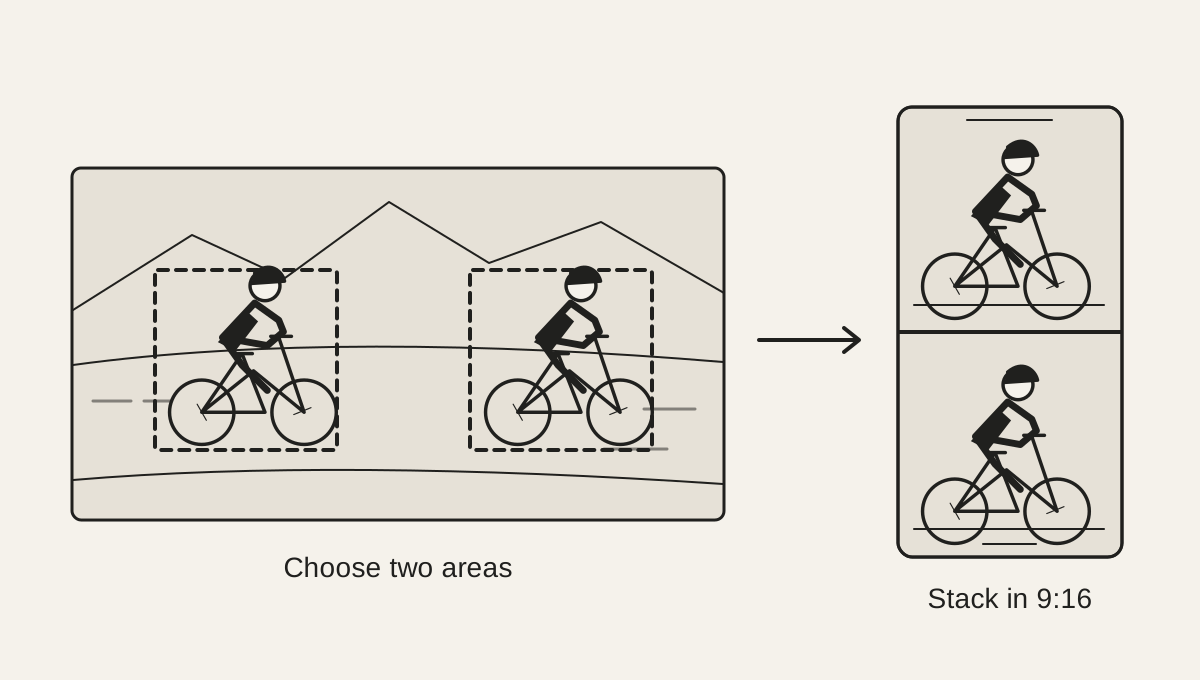
Start with a wide shot that has two useful areas
The source can be a landscape interview with two people, a speaker and a detail, or gameplay with a facecam already in the same video. The tool creates two crop windows and places one above the other in the vertical output. Each window shows a different part of the same source frame. Both crops come from one video file.
The example shows two cyclists spaced across a wide road. The first crop is positioned over the rider on the left; the second is over the rider on the right. If the important subjects sit close together, the two windows can overlap in the source, but that may make the final frames feel repetitive.
Adjust both frames in the preview
Choose a video and wait for its first frame to load. The tool places two starter frames over the source. Drag a frame to move it, or drag a corner to resize it around the person or detail you want to keep. The vertical preview updates as you work. Reset frames restores the starting positions if you want to try again.
The crop windows are fixed over the source: they do not track a person who walks or rides across the frame. Scrub through the video and check both areas at several points. This works best when subjects stay near their chosen positions, or when the camera movement is small. For fast movement, use an editor with motion tracking or animate the crop over time.
You can also select a frame and use the arrow keys to nudge it. The plus and minus keys resize it, and Shift moves or resizes more quickly. This gives you a precise alternative to dragging on a touch screen or mouse.
Frame a two-person interview for a vertical screen
For a landscape interview, place one crop around each person. Leave room above their heads and below their chins, then check the parts where they lean forward or gesture. Keeping faces a similar size makes the stacked conversation easier to follow. A fixed camera and seated speakers work well because the crop positions stay useful throughout the clip.
Watch the source for captions or names near the bottom: a tighter crop may remove them. If you need the spoken words for a description or quotation, the video transcription walkthrough shows how to make a text draft and check it against the audio. This converter carries the source audio into the result; it does not add subtitles.
Keep gameplay and a facecam visible
When a recording already contains gameplay and a facecam, put one crop over the action and the other over the camera inset. Check that the gameplay crop includes the information a viewer needs, such as the character, score, or relevant controls. A wide game interface may not fit into the crop, so choose a clip whose action stays in a compact area.
The two windows sample the same recording at the same time, keeping the facecam reaction aligned with the game. Separate camera and gameplay files need to be combined first. If the facecam is small in the source, enlarging it will also enlarge its blur; the tool cannot recover detail missing from the recording.
Export a portrait edit and review the whole clip
The result is a 720 × 1280 video with the two crops stacked vertically. The source audio is carried into the export. Depending on browser support, the file is saved as WebM or MP4. Export runs in real time, so a longer source takes longer to record; keep the tab open and visible until it finishes.
Before sharing, watch the saved file from beginning to end. A crop that looks good on the first frame can miss its subject later, and a frame close to the edge may cut off movement. The preview helps you make the initial composition; a final playback catches changes throughout the clip.
Example output · 15 seconds
See the two crops stacked
The boxes in the source image show the two crop areas. Play the portrait preview, or download the sample video to frame your own subjects.
Download the sample video